One of the biggest drawbacks of stacked PRs is keeping the branches in sync. Rebasing a branch rewrites its commits and gives them new SHAs, while downstream branches still reference the original history.
For example, if PR B builds on PR A, rebasing A does not automatically move B onto A’s rewritten commits. B still contains the old version of A’s work, so any changes made while rebasing A such as resolving conflicts will be missing from B.
Trying to manually rebase each dependent branch can be tedious and error-prone.
To simplify this, use git rebase --update-refs. From the top branch, i.e., the one containing all the commits in your stack, run git rebase --update-refs main. Git rebases those commits onto main and automatically updates any local branches pointing to them to keep the stack aligned in a single rebase.
Step by Step Guide
1. Check Out the Top Branch in the Stack
The top branch, sometimes called the tip branch, contains the cumulative changes from every branch below it. Start by checking out this branch:
git checkout branch-nNote: Replace branch-n with the actual name of your top branch.
2. Perform an Interactive Rebase with --update-refs
Rebase the top branch onto your desired base (for example main) using the interactive rebase mode combined with --update-refs.
git rebase -i --update-refs mainInteractive mode -i lets you edit commits anywhere in the stack. The --update-refs option will automatically move local branches pointing to rebased commits onto their rewritten versions, so you do not need to rebase each branch separately.
When you run the command your interactive rebase editor might look similar to the image below:
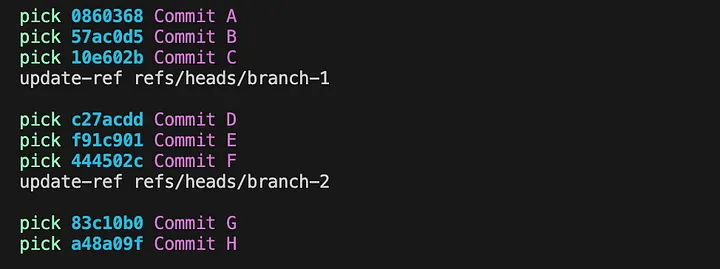
Notice there is an update-ref refs/heads/branch-n that marks (or “points to”) the head of each branch that the PR stacks upon.
3. Edit the commits and complete the rebase
Change pick to edit for each commit you want to modify, then save and close the editor.
When the rebase finishes, Git updates the affected local branch pointers. Your terminal should show output similar to this:

4. Push the updated branches
The remote branches still reference the old history. Update them using --atomic --force-with-lease:
git push origin --atomic --force-with-lease branch-1 branch-2 branch-nReplace the example names with every branch in your stack. --atomic ensures either every listed branch updates or none do. --force-with-lease rejects an update if a remote branch differs from the version Git expects, helping protect changes pushed by someone else.
Always push the whole stack together
Pushing branches one by one can temporarily leave the parent and child branches on different histories. GitHub may then show changes from earlier PRs or from main in the child PR, potentially triggering unrelated
CODEOWNERSreview requests.Push every branch in one command with
--atomic --force-with-leaseso the remote stack updates together.